
Step 1: Upload Your Model and Explore the Model Topology
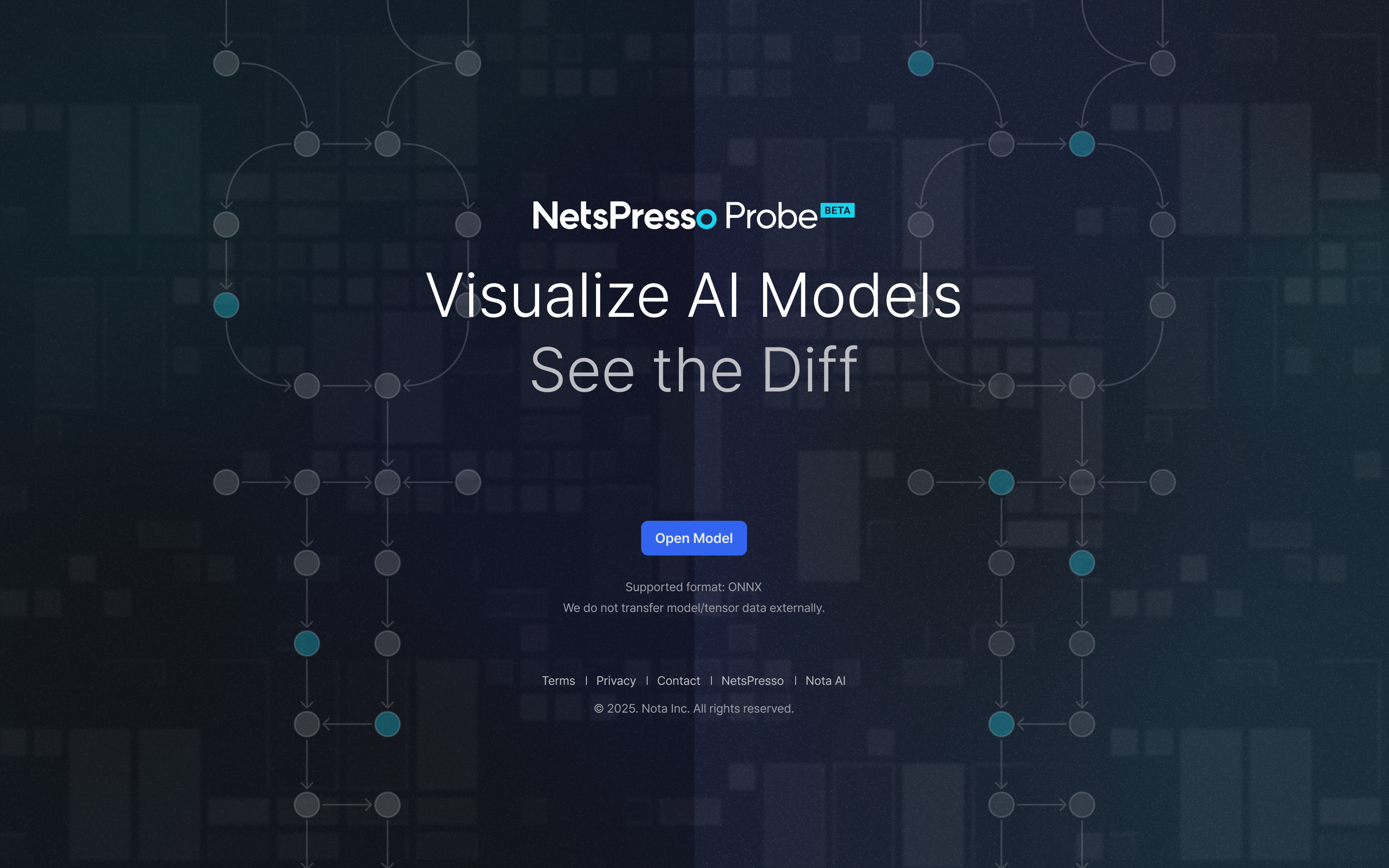
NetsPresso Probe allows you to load ONNX models directly through your browser.
Upload Methods
- Click “Open Model” on the landing page
- Use Graph → Open Model from the menu bar
- Or simply drag and drop a model file
After Uploading
Once the model is loaded:
- The full topology is visualized
- The Node Properties panel displays type, shape, and attributes
- A minimap helps you navigate large graphs efficiently
After loading the model, NetsPresso Probe provides several features to help you explore and analyze the graph.
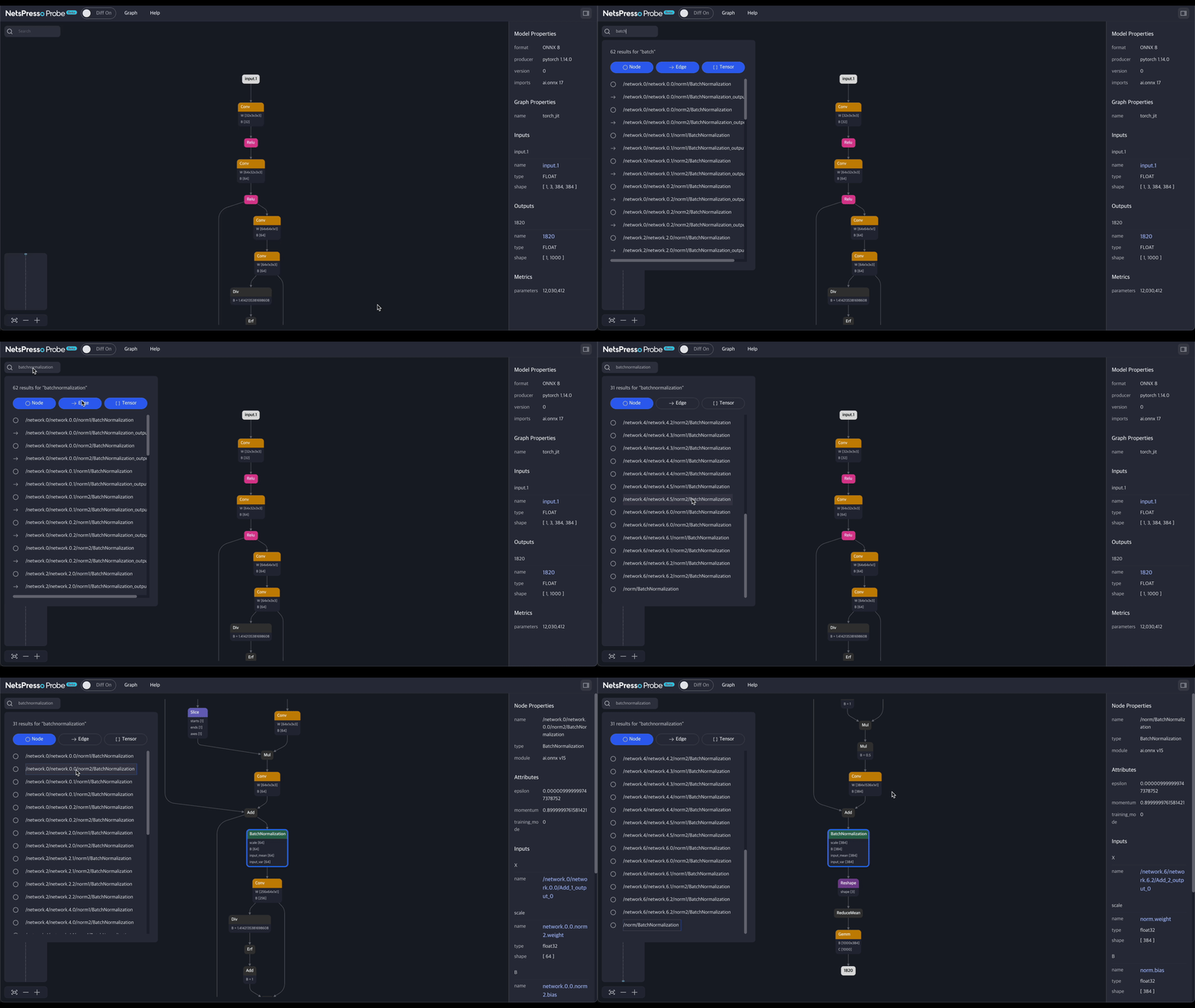
1. Search
- Search nodes by name
- Quickly find all operators of a specific type (e.g., MatMul, Conv)
2. Node Coloring
Available via Graph → Color Nodes
You can highlight operators that are important for each experiment by assigning custom colors, making it easier to focus on specific parts of the model.
- Highlight operator types using predefined or custom colors
Useful for large models where repeated operations appear frequently.
3. Synced Control
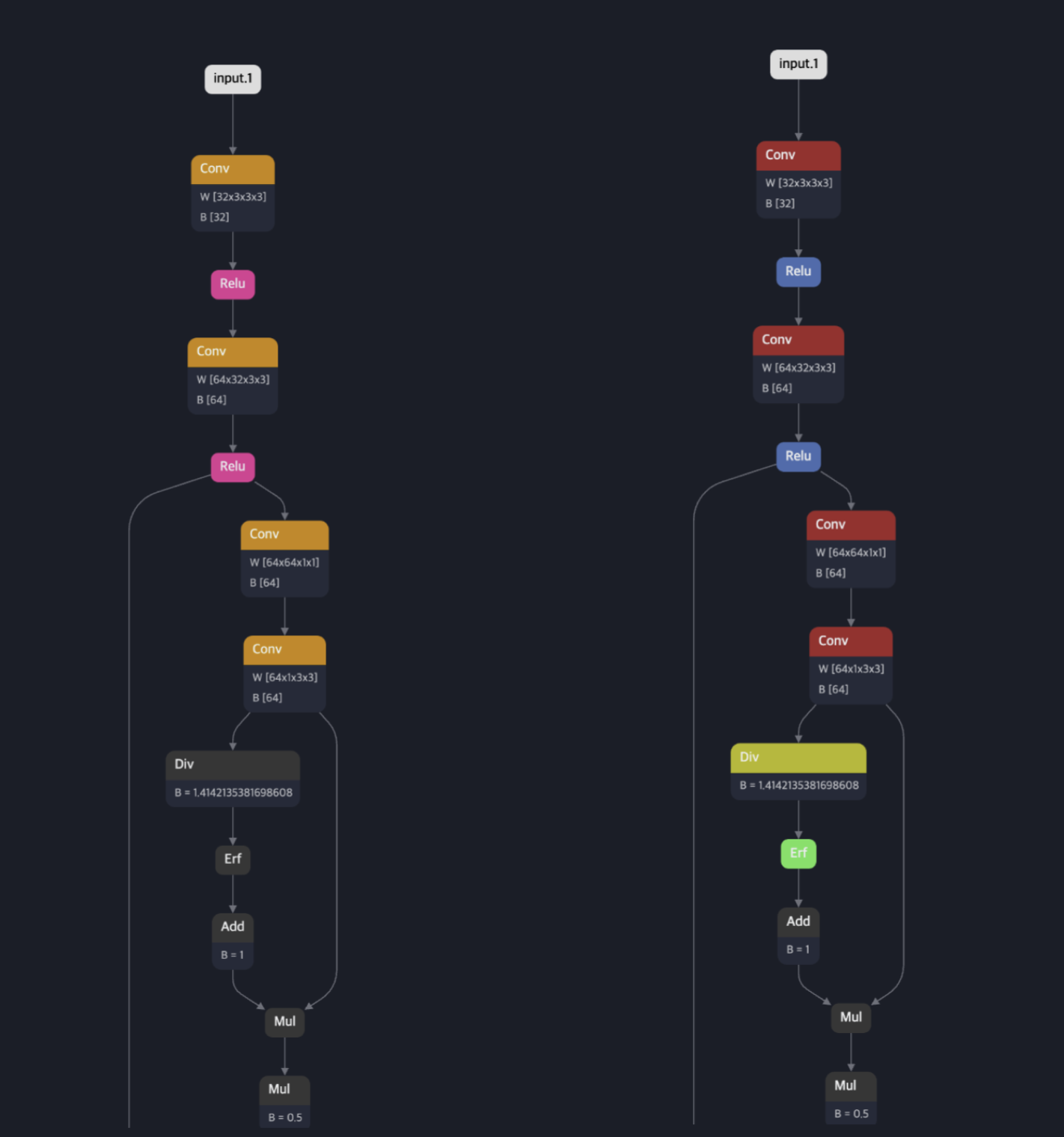
Enables synchronized navigation between two graphs.
When comparing models with similar topology, synced scrolling and zooming are applied to both graphs simultaneously, making the exploration of structural differences more efficient.
- Zoom, pan, and scroll with smooth interactions
- In Diff mode, navigation is automatically synchronized between both graphs. You can disable synced control clicking the link button between two models.
Updated 4 months ago